MedAbbrev Enhances Searches with Account Specific Results
Posted February 20, 2026
innoviHealth is excited to announce a new enhancement to MedAbbrev allowing organizations to have greater search flexibility. Accounts are now able to include their own lists of abbreviations/acronyms that are specific for their organization. These are found on the Account Information page:
- "Do Not Use" List URL
- "Supplemental Terms" List URL
This customer requested feature allows organizations to add “supplemental” approved terms using the [Account Terms] option. Please note that this feature can only be accessed by the account administrator. Once terms and descriptions have been added to the account list and an account user does a search on a term that appears in their organization’s “approved” list, it will be the first result displayed on the search results page. Here’s an example:
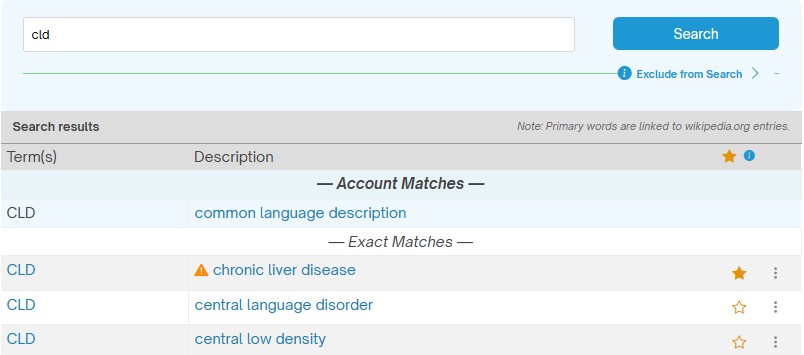
In this case, the term “CLD” is on the account’s list of “Approved” terms so it is the first result showing.
Here’s how it works.
- Go into your account (Menu -> Account) and click on [Account Terms]
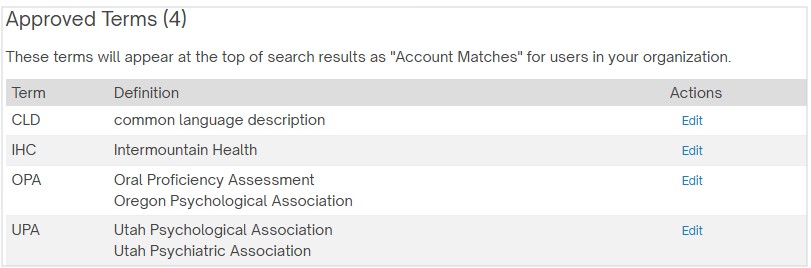
- From here you can add new terms or edit ones that have already been entered.
Add New Account Term
- Click on the [Add New Account Term] button and the following window appears:
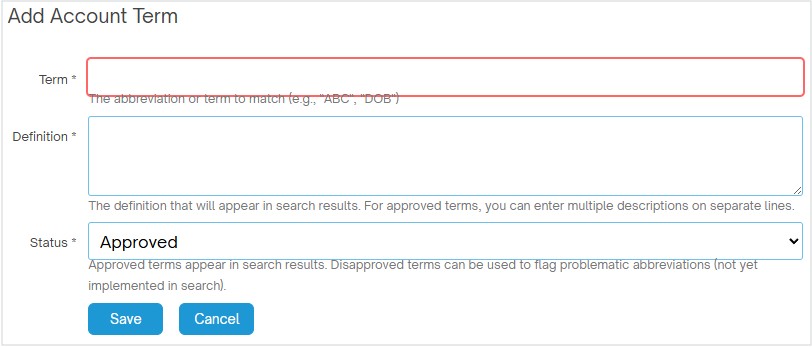
- Enter the information:
- Term: This field is the abbreviation or acronym you wish to add (e.g., MSP)
- Definition: enter what you want to show for that term
- Status: This field identifies whether this term is an approved term or a disapproved one. Use the drop down arrow on the far right to switch between “approved” and “disapproved”
- Click [Save] to save that entry and return to the main Account Terms Management page.
Editing Customized Terms
Once terms have been entered, your account administrator may need to revise the terms that have previously been entered. This is done from the Account Terms Management page.
- Click on the word edit following the entry you wish to edit or remove.
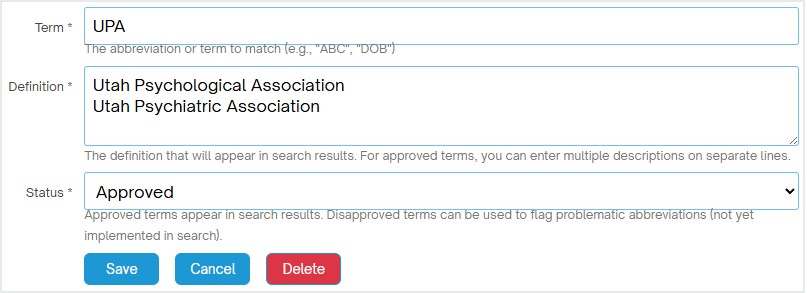
- When the “Edit Account Term” window opens, make whatever revisions need to be made and click [Save] to save your changes.
- If you need to delete that entry, simply click the red [Delete] button.
Note that you can enter more than one description for a term, just have them on two different lines like this: